
What the email tool does
Connect your own mailboxes — Gmail, QQ, iCloud, and many more — and your agent can read your inbox, search it, and draft and send messages, all using your account over standard IMAP/SMTP.
Not the same as the email chat channel
There are two email features, and they're different:
- Email tool (this page) — the agent uses your mailbox to read and send mail for you.
- Email channel (under Messaging) — lets other people email the agent, like any other chat app.
This page is about the first one.
Add a mailbox
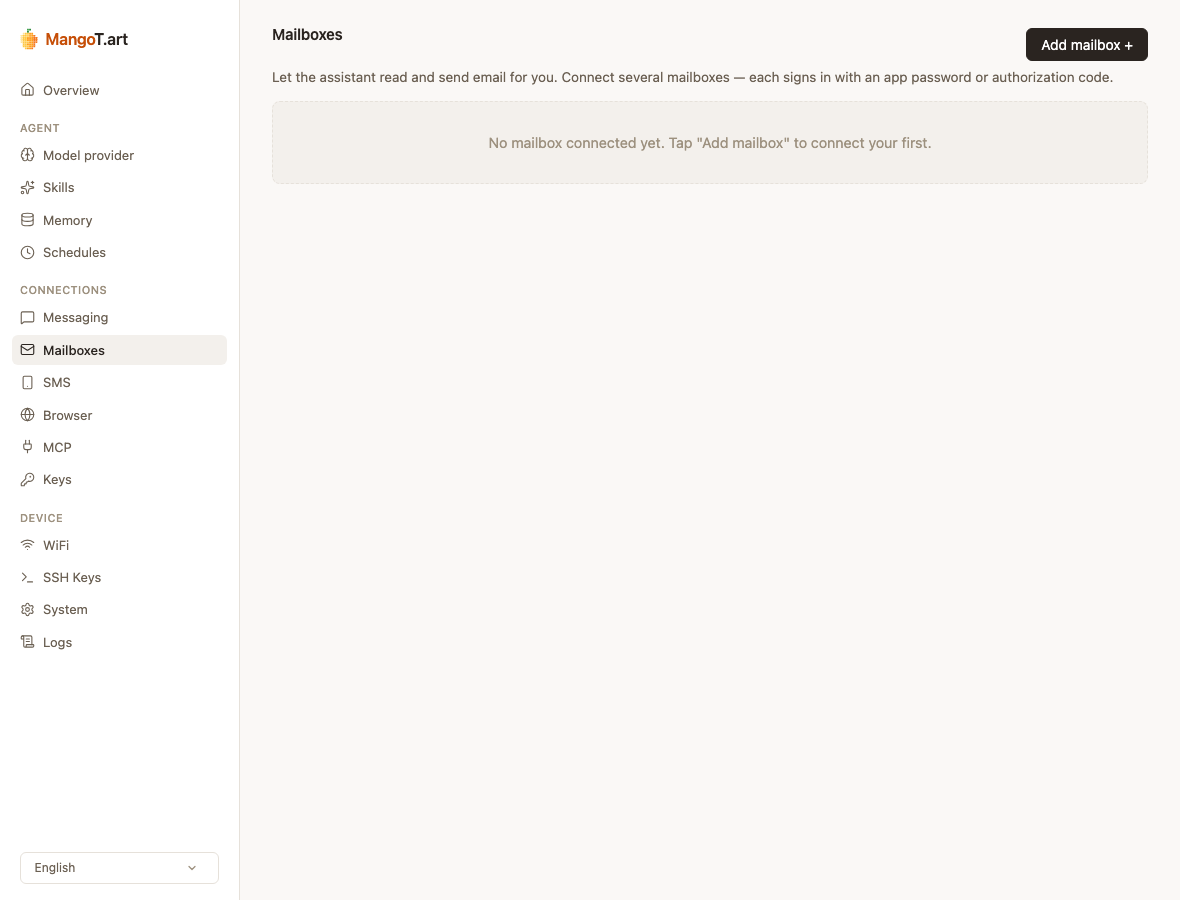
Open the Mailboxes page in MangoTart's management UI and click Add mailbox.
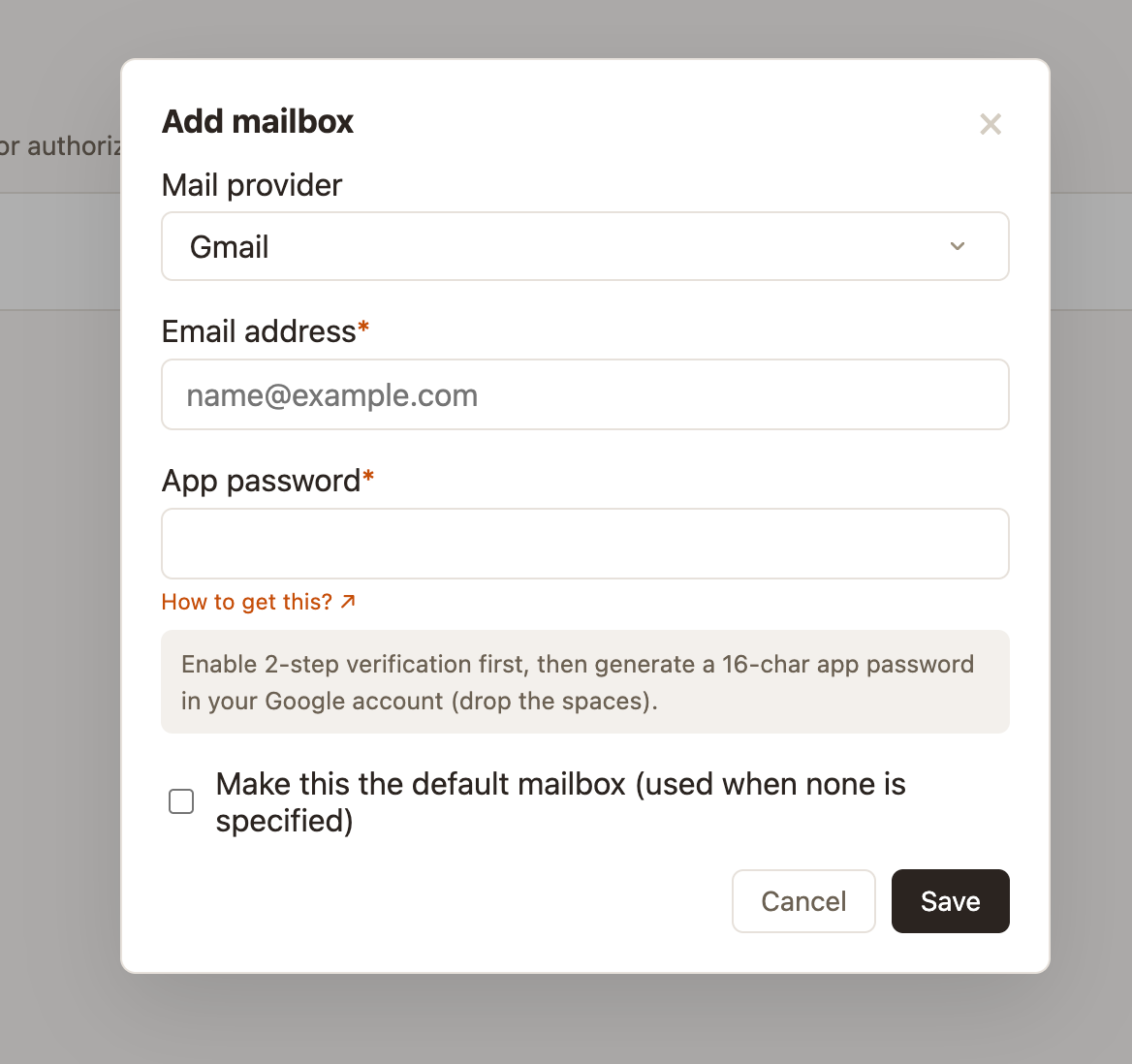
Pick your provider
Choose from the list: global providers (Gmail, iCloud, Yahoo, Fastmail, Zoho, GMX), China providers (QQ, Foxmail, 163, 126, Exmail, 139, Sina, Aliyun), or Custom for anything else.
Enter your address and credential
Type your email address, then the credential the provider wants — see the table below for which kind.
Save
The mailbox is added. Add more if you like, and set one as the default the agent uses when you don't name a mailbox.
Which credential each provider needs
Most providers won't accept your normal login password — they want a dedicated app password or authorization code that you generate once.
| Credential | Providers | How to get it |
|---|---|---|
| App password | Gmail, iCloud, Yahoo, Fastmail, Zoho | Generate an "app password" in the provider's account / security settings |
| Authorization code | QQ, Foxmail, 163, 126, Exmail, 139, Sina | Turn on IMAP/SMTP in the mailbox settings — it issues an authorization code |
| Password | GMX, Aliyun | Your normal mailbox password works |
| Not yet supported | Outlook, Office 365 | Sign-in is OAuth-only (support coming later) |
For Gmail, QQ, 163 and most others, your normal login password will be rejected — you must use the app password or authorization code. The Add-mailbox form links straight to the right page for each provider.
Example: a Gmail app password
Gmail won't accept your normal password — generate a one-time app password instead. (2-step verification must be on first.)
Create the app password
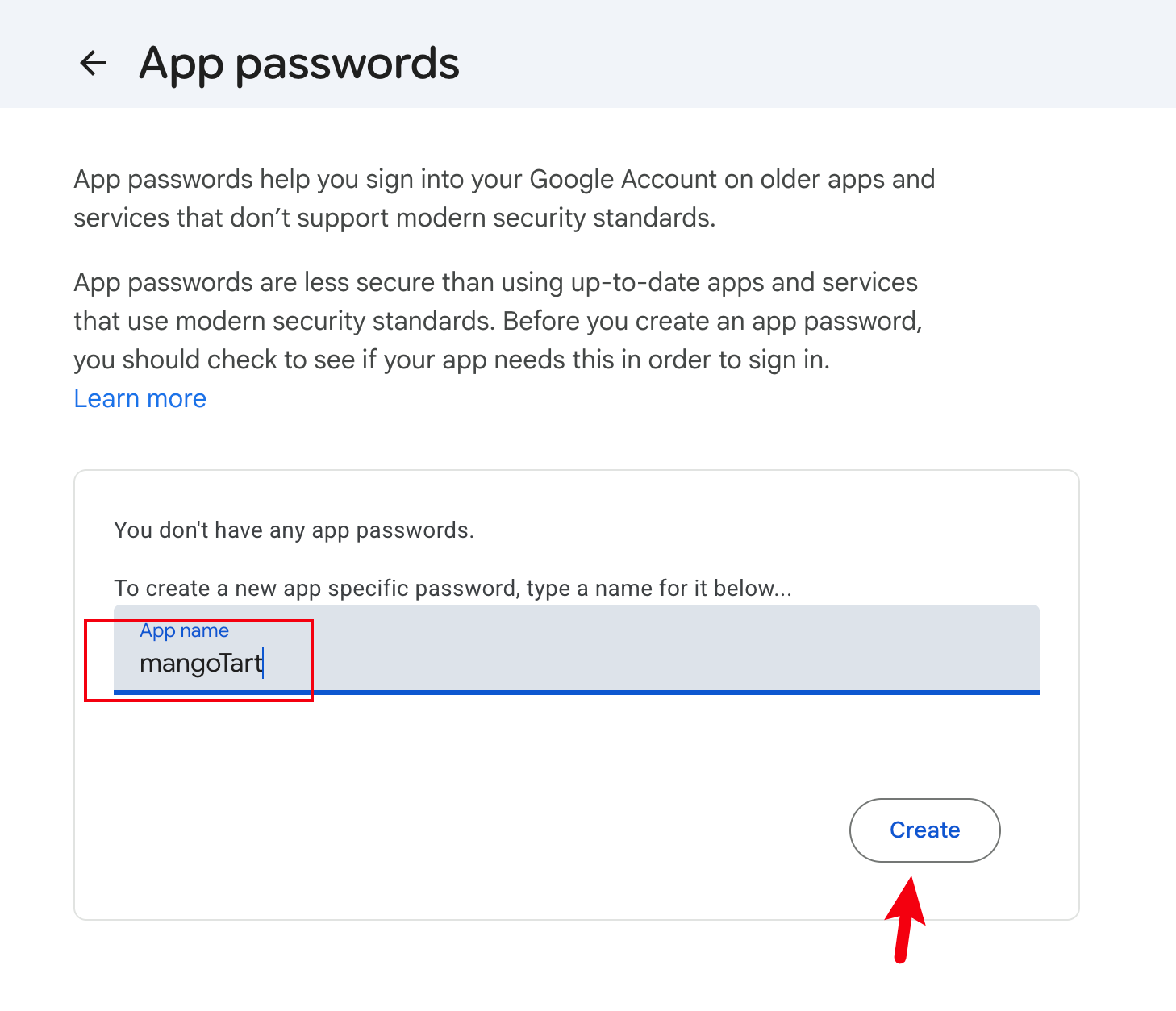
In your Google account, open Security → App passwords, give it a name like mangoTart, and click Create.
Copy it onto MangoTart
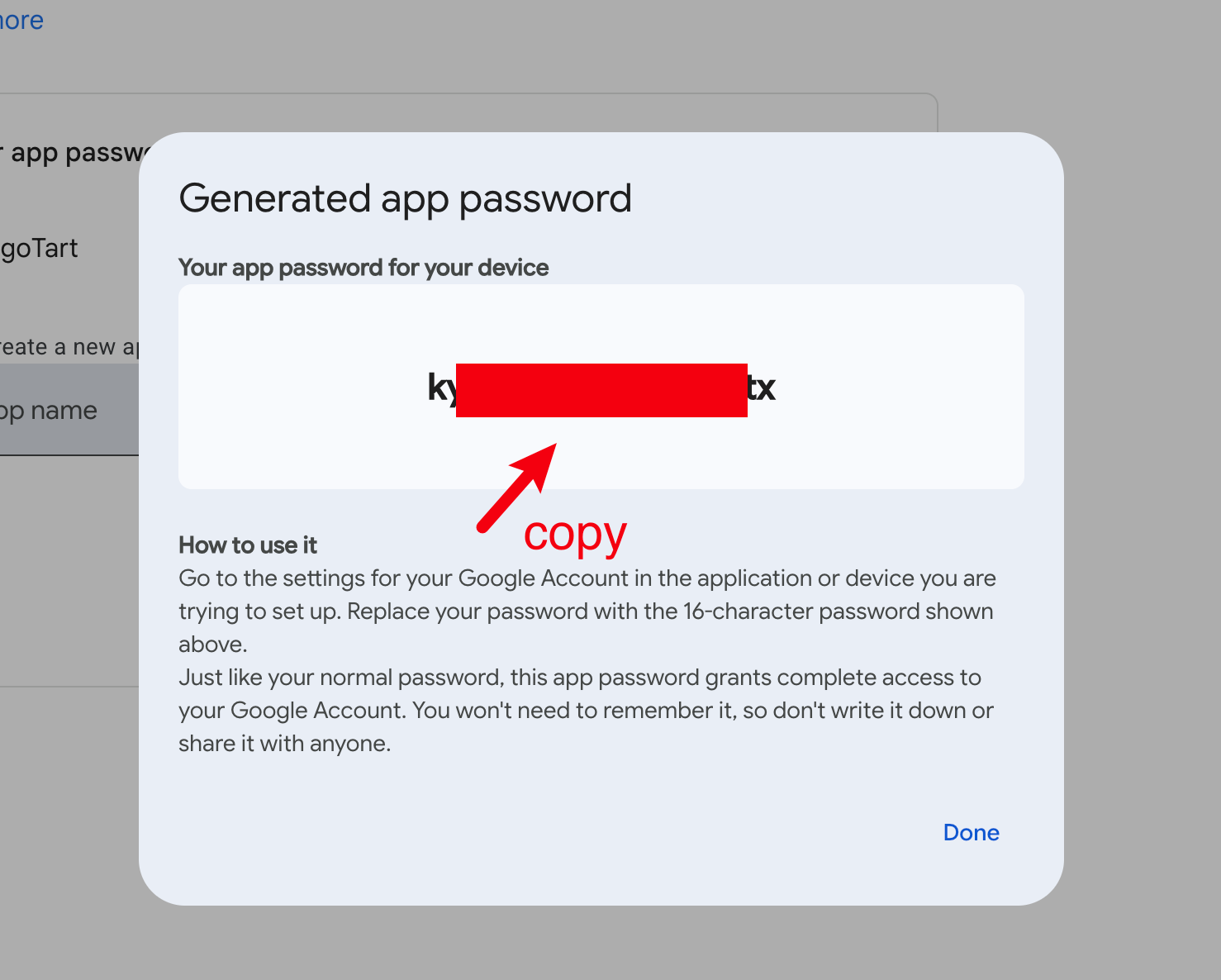
Google shows a 16-character password. Copy it (you can drop the spaces) and paste it into the App password field in the Add mailbox dialog.
Custom provider
If your provider isn't listed, choose Custom and fill in the IMAP and SMTP host, port, and encryption (TLS / STARTTLS / None). A typical setup is IMAP on 993 (TLS) and SMTP on 465 (TLS) or 587 (STARTTLS).
What the agent can do
Once a mailbox is connected, just ask in chat. Your agent can:
- list recent messages, or only the unread ones;
- search by sender, subject, or text;
- read a message in full;
- draft and send a reply, or a new email, from your address.
If you've connected more than one mailbox, name the one you mean ("reply from my work Gmail"); otherwise the agent uses the default.
Tips & troubleshooting
- "Authentication failed" almost always means you entered your login password instead of an app password / authorization code. Generate the right one and re-add the mailbox.
- Authorization codes can expire or be revoked when you change your mailbox password — generate a fresh one and update the mailbox.
- Connection problems on a custom server are usually a wrong port/encryption pair — use 993+TLS for IMAP and 465+TLS or 587+STARTTLS for SMTP.